Printing your favorite photos can turn digital memories into tangible keepsakes. Whether you want to create a family album or print vacation snapshots, learning how to transfer photos for printing from your mobile to a computer is essential. Let’s walk through simple, reliable methods to get your images ready for print using tools like Momentstransfer.com, Rossmann, DM, or Kodak services.
Why Transfer Photos for Printing?
While printing directly from your mobile is convenient, transferring photos to your computer gives you better control. You can edit images, choose higher resolutions, and organize files before uploading them for printing. It also helps prevent loss of quality, ensuring your photos look their best when printed.
Method 1: Transfer Photos via USB Cable
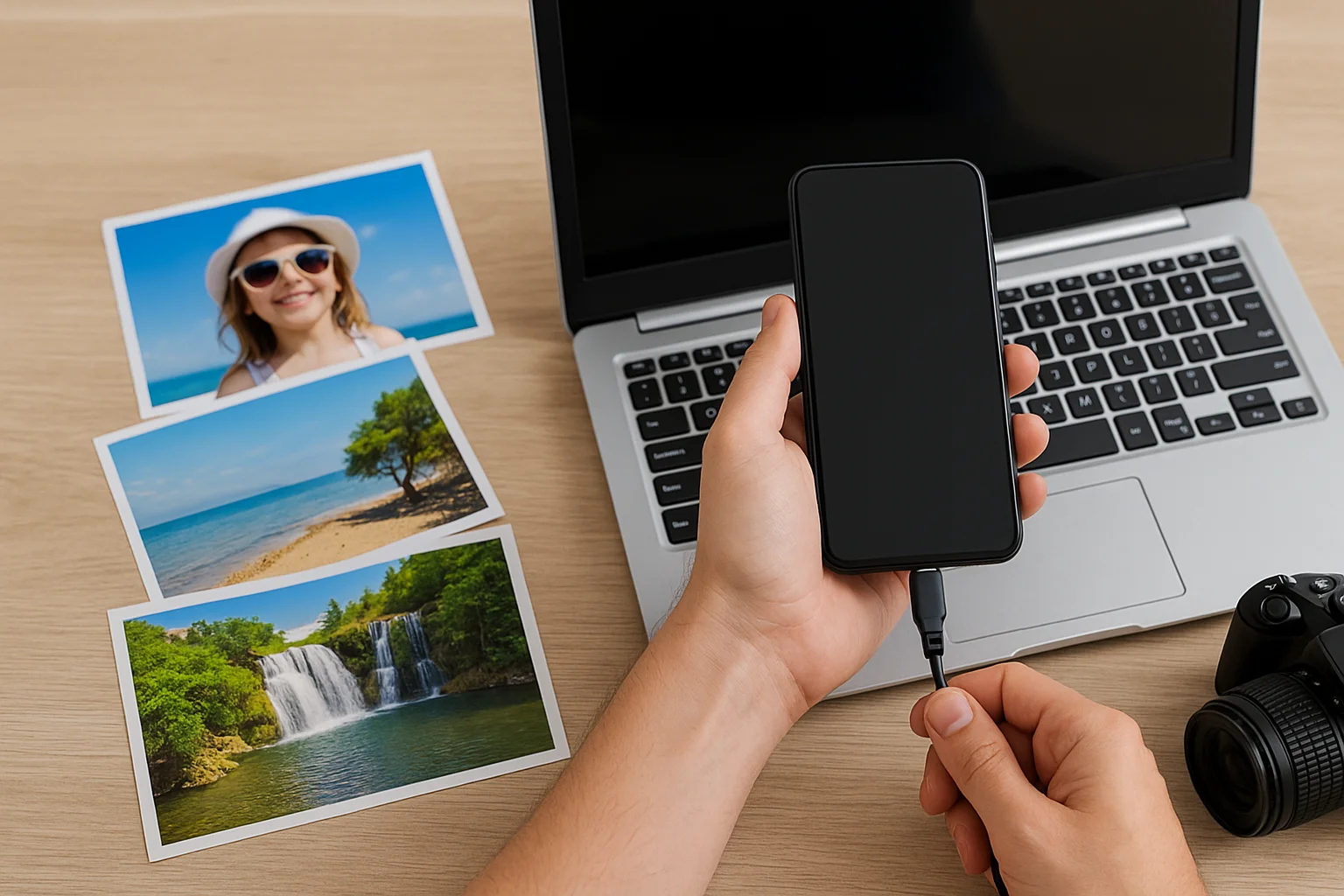
Step 1: Connect Your Phone
Use a USB cable compatible with your device. For Android phones, connect using a standard USB or USB-C cable. For iPhones, use a Lightning-to-USB cable.
Step 2: Allow Access
When prompted on your phone, tap “Allow” or “Trust This Computer.” This enables file transfer between your phone and computer.
Step 3: Copy Photos
Open the folder titled “DCIM” (Digital Camera Images) on your phone storage. Select the images you want, copy them, and paste them into a folder on your computer.
Step 4: Organize and Edit
Rename or sort the photos for easy printing. If you plan to use online printing services like Momentstransfer.com, Rossmann, or DM, ensure your photos are in JPEG or PNG format for best compatibility.
Method 2: Transfer Photos Using Bluetooth or Wi-Fi
If you don’t have a cable handy, wireless transfer is an easy alternative.
Bluetooth Transfer
- Turn on Bluetooth on both your phone and computer.
- Pair the devices by confirming the same passkey.
- Select photos on your phone and share them via Bluetooth.
- Accept the transfer on your computer.
This method works well for a few photos but can be slow for large files.
Wi-Fi Transfer Apps
Use transfer apps like Snapdrop, AirDroid, or SHAREit to send photos over Wi-Fi. Both devices must be connected to the same network. These tools are perfect for quickly moving high-resolution photos without cables.
Method 3: Use Cloud Storage Services
Cloud platforms like Google Drive, iCloud, or Dropbox make transferring photos seamless.
- Upload photos from your mobile to the cloud.
- Open the same cloud account on your computer.
- Download your selected photos.
This method ensures your photos are safe and accessible anytime, anywhere. Plus, it’s convenient if you want to print using online platforms like Kodak Express or DM photo services.
Method 4: Email or Messaging Apps
For smaller batches of photos, you can email them to yourself or send them through messaging apps like WhatsApp Web or Telegram.
- Open your email or app on your phone.
- Attach or share the photos to your email address.
- Open the email on your computer and download the attachments.
It’s quick and ideal for urgent printing tasks, though it’s not the best for large albums due to size limits.
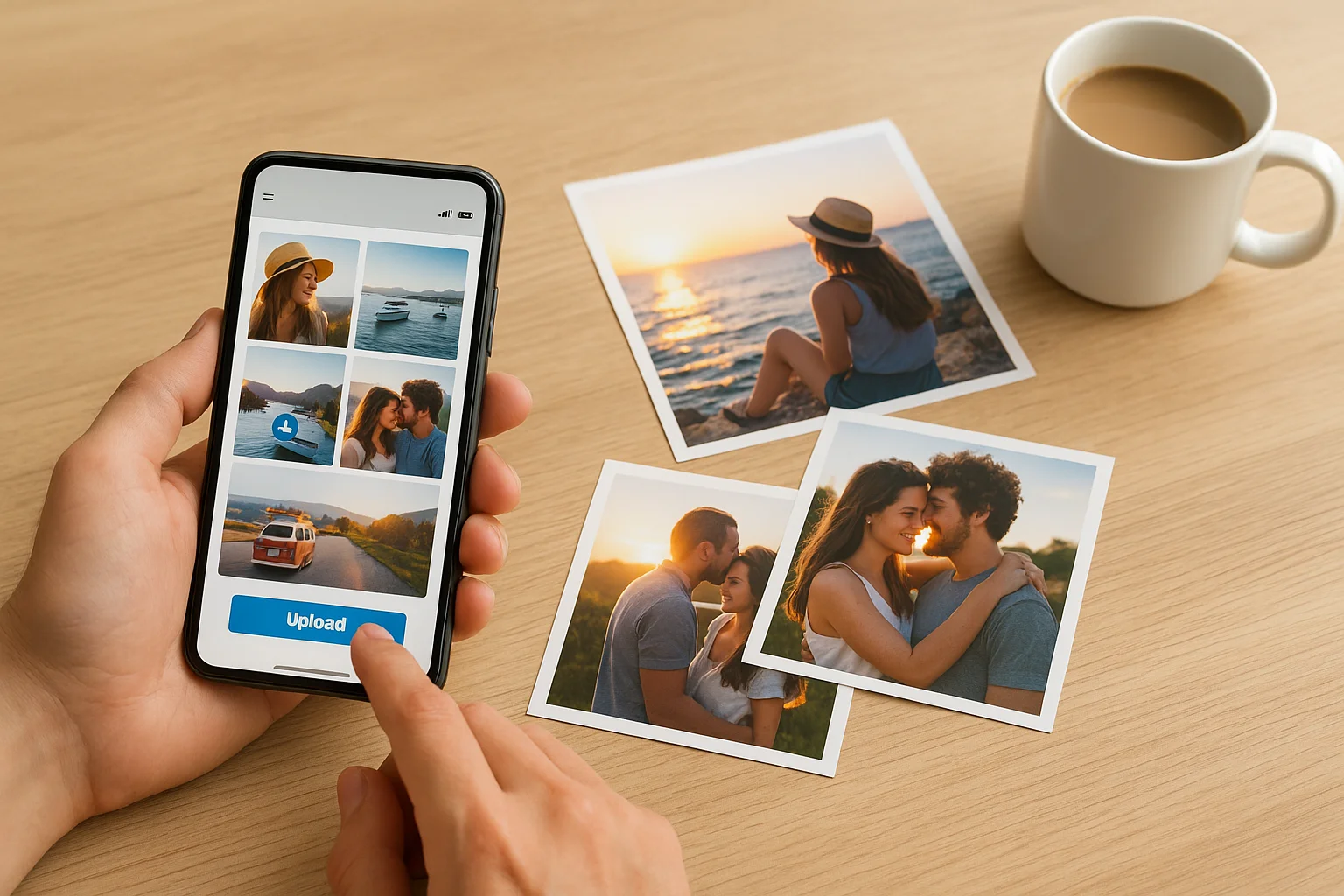
Method 5: Direct Upload on Momentstransfer.com
Momentstransfer.com simplifies the entire process of transferring and printing photos online.
- Open momentstransfer.com on your mobile or computer.
- Upload your photos directly from your device.
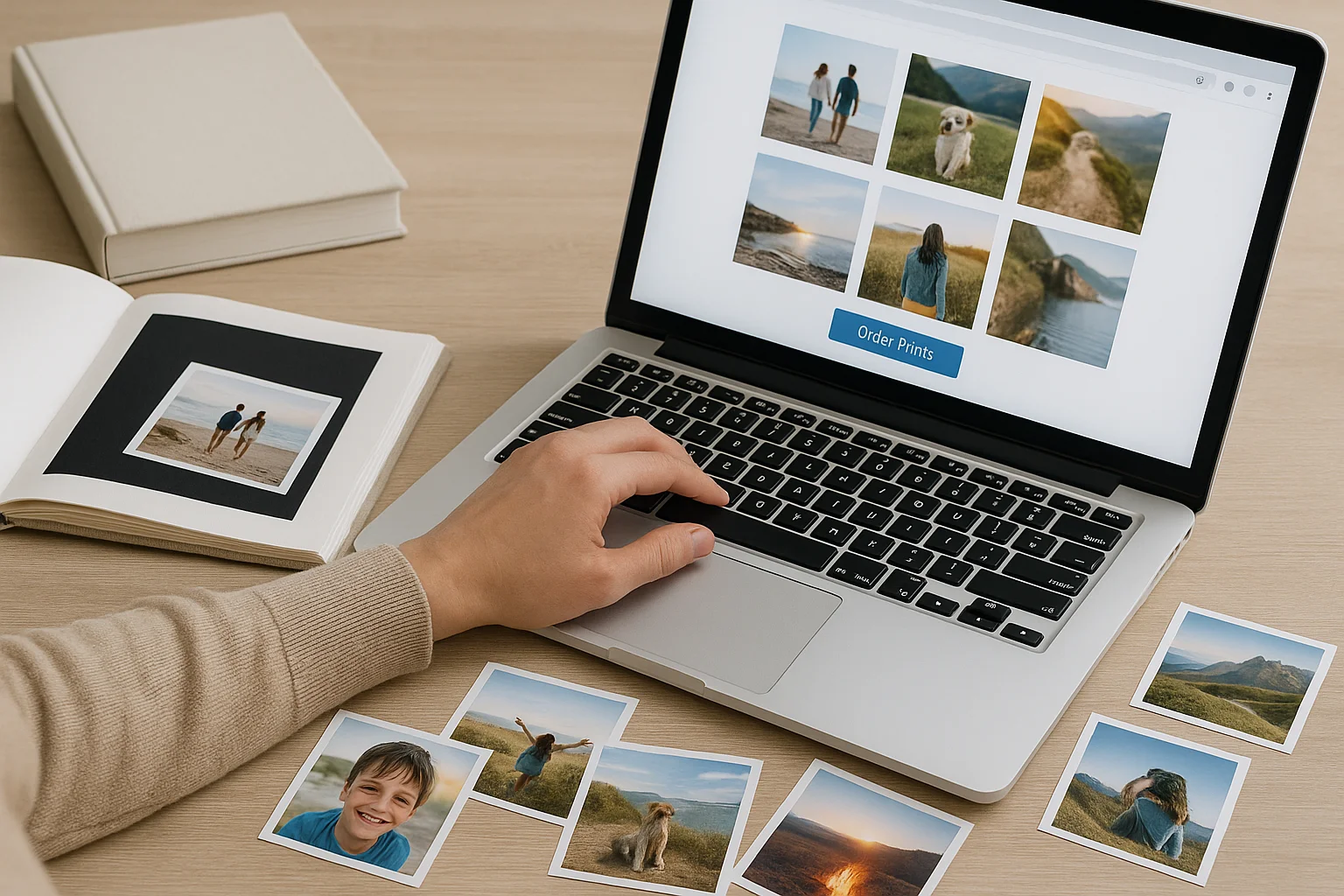
- Select print sizes, finishes (glossy or matte), and quantity.
- Place your order and pick up prints at a partner store or receive them by mail.
This is one of the easiest and most reliable ways to get professional-quality prints from your mobile photos, without needing to manage multiple transfers manually.
Tips for Preparing Photos Before Printing
- Use High-Resolution Files: Avoid screenshots or low-quality images. Aim for photos above 300 DPI (dots per inch).
- Edit Before Printing: Adjust brightness, contrast, and cropping on your computer before uploading.
- Check File Format: Most printing services, including Rossmann and Kodak, prefer JPEG or PNG files.
- Organize by Album: Create folders by event or theme to save time during upload.
Common Issues When Transferring Photos
Photos Not Showing on Computer
If your device doesn’t display photo folders, check your USB settings. Ensure “File Transfer” (MTP) mode is enabled.
Slow Transfer Speed
Large video or RAW files can slow things down. Compress your photos before transferring or use a fast Wi-Fi connection.
Format Compatibility
If your printer or service doesn’t support HEIC files (used by iPhones), convert them to JPEG using your computer’s photo editor.
Best Printing Options After Transfer
Once your photos are safely on your computer, you can explore various printing options:
- Momentstransfer.com: Perfect for uploading multiple photos at once and getting professional-quality prints.
- Rossmann & DM Stores: Great for in-store printing if you prefer to pick up prints locally.
- Kodak Express: Known for high-quality photo paper and color accuracy.
Each service offers different size options and finishes, so choose what best suits your printing needs.
How to Ensure High-Quality Prints
- Always preview photos on your computer before printing.
- Avoid over-editing as it can distort colors.
- Select matte finish for vintage-style photos or glossy for vibrant colors.
- Save your photos in the sRGB color profile, which most printing services use.
FAQs
1. What’s the easiest way to transfer photos for printing?
Using a USB cable or Momentstransfer.com is the simplest way. Both methods are fast, safe, and preserve photo quality.
2. Can I print directly from my mobile without a computer?
Yes, many services like Rossmann, DM, and Kodak Express have mobile apps or kiosks for direct uploads, but transferring to a computer allows for better editing and quality control.
3. Do I need to compress photos before uploading?
It’s optional. However, if your photos are very large, compressing them slightly can speed up upload times without affecting print quality.
Conclusion
Transferring photos for printing is easier than ever, whether you use a cable, cloud storage, or an online service like Momentstransfer.com. By following these methods, you can safely move your favorite pictures from mobile to computer and get stunning prints through trusted providers like Rossmann, DM, or Kodak. With a little preparation and the right tools, turning your digital memories into beautiful prints becomes a simple, enjoyable experience.